
Step 01
Check country availability
Start with the country check on the homepage. It helps you ask about the right profile before you apply.
- Choose Personal or Business.
- Select the countries requested by the form. Use the country matching each label, rather than your current travel location.
- Read the result. If availability is unclear, use the enquiry option and keep the selected country information.
The check is preliminary. An account, card or payment route still needs to be confirmed for your profile.
Step 02
Open the registration screen
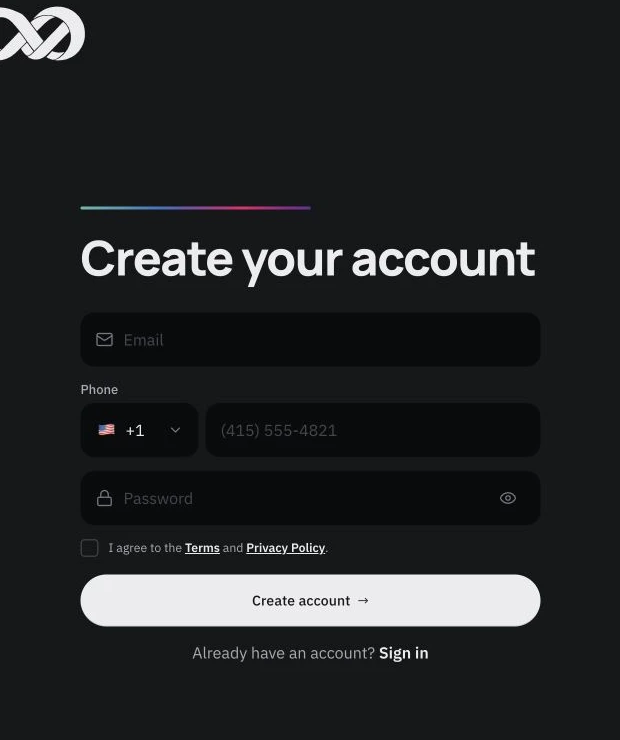
Go to app.ownglobal.com/register. The screen is titled Create your account. If you already have a login, select Sign in instead.
Step 03
Enter your registration details
- Enter an email address you can access.
- Under Phone, select your phone country code and enter your own number. The default country code on the page may need changing.
- Create a password. Use a unique password and keep it private.
- Open and read the linked Terms and Privacy Policy. Select the agreement checkbox only if you agree.
- Select Create account and follow the instructions shown in the application. If a field is rejected, correct the highlighted information before trying again.
Registration creates the starting point for your setup. It does not itself confirm account approval or access to every service.
Step 04
Complete the checks for your account
Continue with the requirements shown for your personal or business profile. Provide requested information through the process specified in the application or by the OWN team.
- Check that your personal or company details are accurate.
- Confirm which services and currencies are available for you.
- Review applicable charges, limits and terms before using a service.
- Use only account details issued for your own approved setup.
Verification requirements and timing depend on the profile and checks involved. If you cannot continue, contact OWN with the step and error message, without including your password or documents in a general enquiry.
Step 05
Ask a question directly from the website
You can contact OWN before registration or when you need help with a service.
- Select Start your enquiry on this page.
- Choose your profile and service; enter your name, email and a short description.
- Select Review enquiry, check the message and choose Send enquiry.
- Keep the reference shown on the receipt screen. The team will reply to your email address.
If no receipt is shown, retry with the same details or use the email fallback. Do not include passwords, full card numbers or identity documents.